快速上手教程
3 分钟掌握 TableSniffer 核心功能
1. 如何捕获数据?
打开任何包含列表或表格的网页,插件会自动在右侧弹出一个侧边栏。或者点击网页表格上出现的蓝色 📥 导出 气泡。
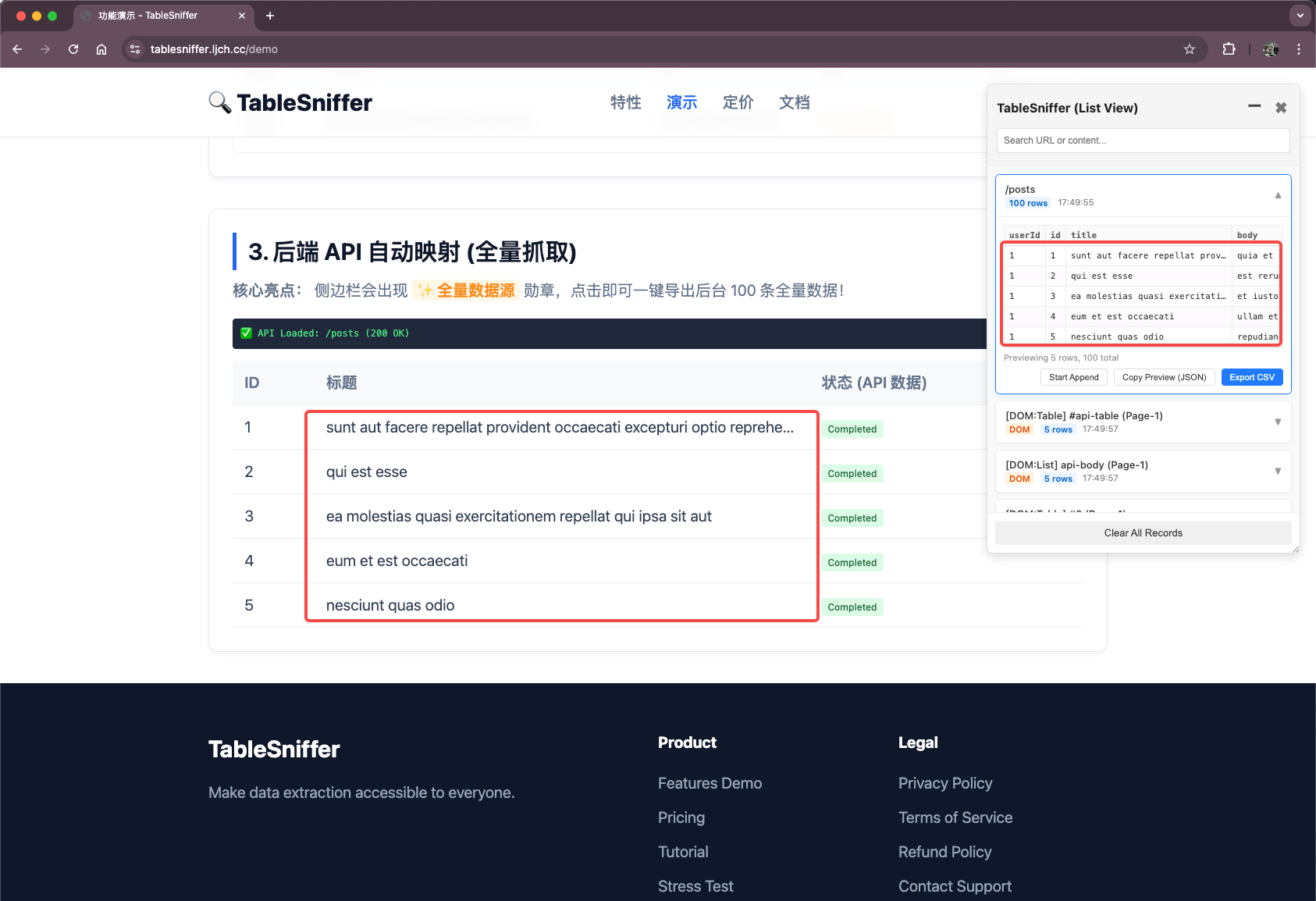
2. 杀手锏:全量数据源 (API Mapping)
很多网页分页显示(比如一页20条),但后台请求通常包含更多数据。当侧边栏显示 ✨ 全量数据源 勋章时,点击导出即可获得后台返回的所有数据,无需翻页。
3. 混合模式:追加录制 (Append Mode)
对于无法自动匹配后台数据的旧网页,您可以点击侧边栏条目旁边的 “追加录制”。开启后,每当您在网页点击“下一页”,新抓取的数据会自动合并到同一个列表中并去重。
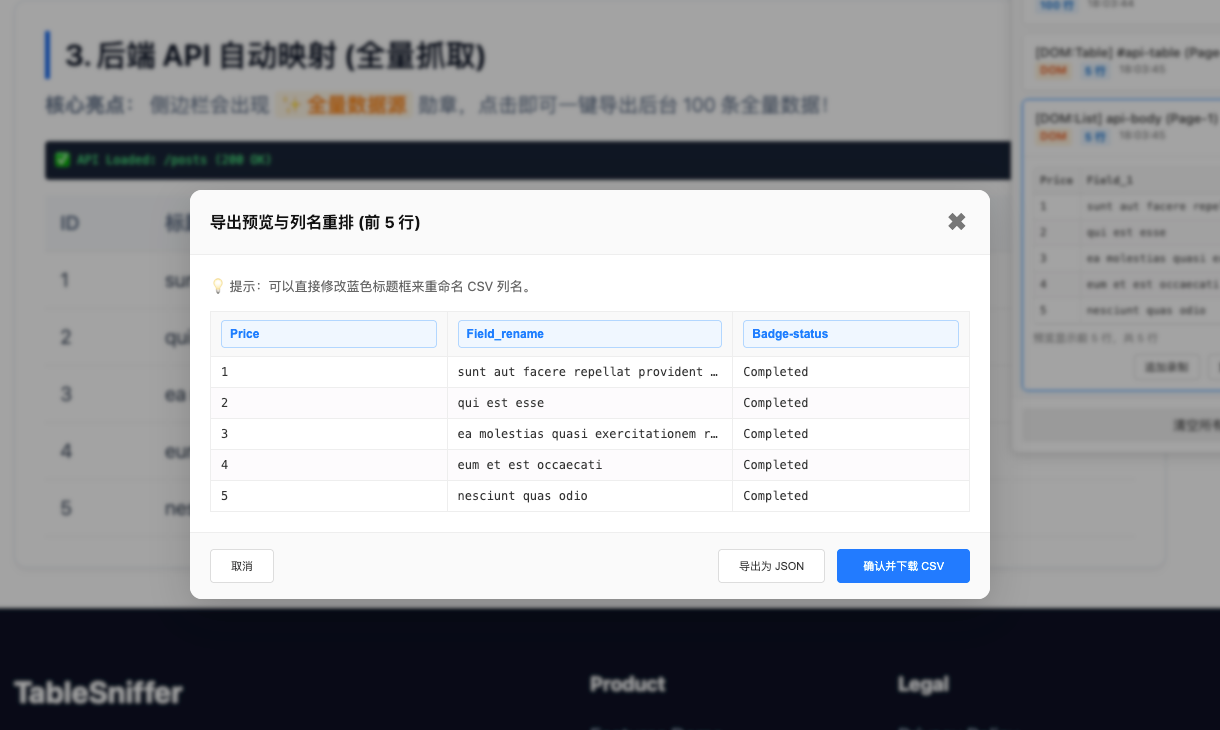
4. 导出前的预览与重命名
点击导出按钮会打开一个预览窗口。在这里您可以双击列头重命名,确认没问题后再下载 CSV 或 JSON 文件。
1. How to capture data?
Simply open any page containing lists or tables. The sidebar will pop up automatically. Alternatively, click the blue 📥 Export pin that appears on page tables.
2. Killer Feature: Full Source (API Mapping)
When you see the ✨ Full Source badge, it means we've linked the table to a background API response. Click export to get 1000s of rows from the backend instantly, even if only 20 are visible on the page.
3. Hybrid Mode: Append Recording
For pages where auto-mapping isn't available, click "Start Append". While recording, navigate through pagination (e.g., click Next Page) and new data will be automatically merged and de-duplicated into a single dataset.
4. Preview & Rename
The export button opens a WYSIWYG preview. Double-click headers to rename columns before downloading your clean CSV or JSON file.